ARIOVIA · DESIGN TO RFQ
AI Design Studio
Create Your Embroidered Patch Design with AI
Start with specifications and an idea. Prepare a prompt, then bring your design back to Ariovia. This site does not generate images or send your files to third parties.
Text and files stay in browser memory. Language and theme switches preserve them; refreshing clears them.
01 Define Your Patch Specifications
Defaults are editable. Unspecified fields will be marked as needing confirmation in the prompt.
Please provide design artwork or logo image for an accurate quote.
02 Upload Your Logo, Reference Images, or Describe Your Idea
JPG, JPEG, PNG, WEBP, SVG, PDF; 5 MiB each, 10 files, 20 MiB total. Local previews only. External AI platforms may have different attachment limits.
- No reference files selected.
03 Generate Your AI Image Prompt
Copying a prompt does not attach images. Upload your reference files, charts and example on the AI platform yourself.
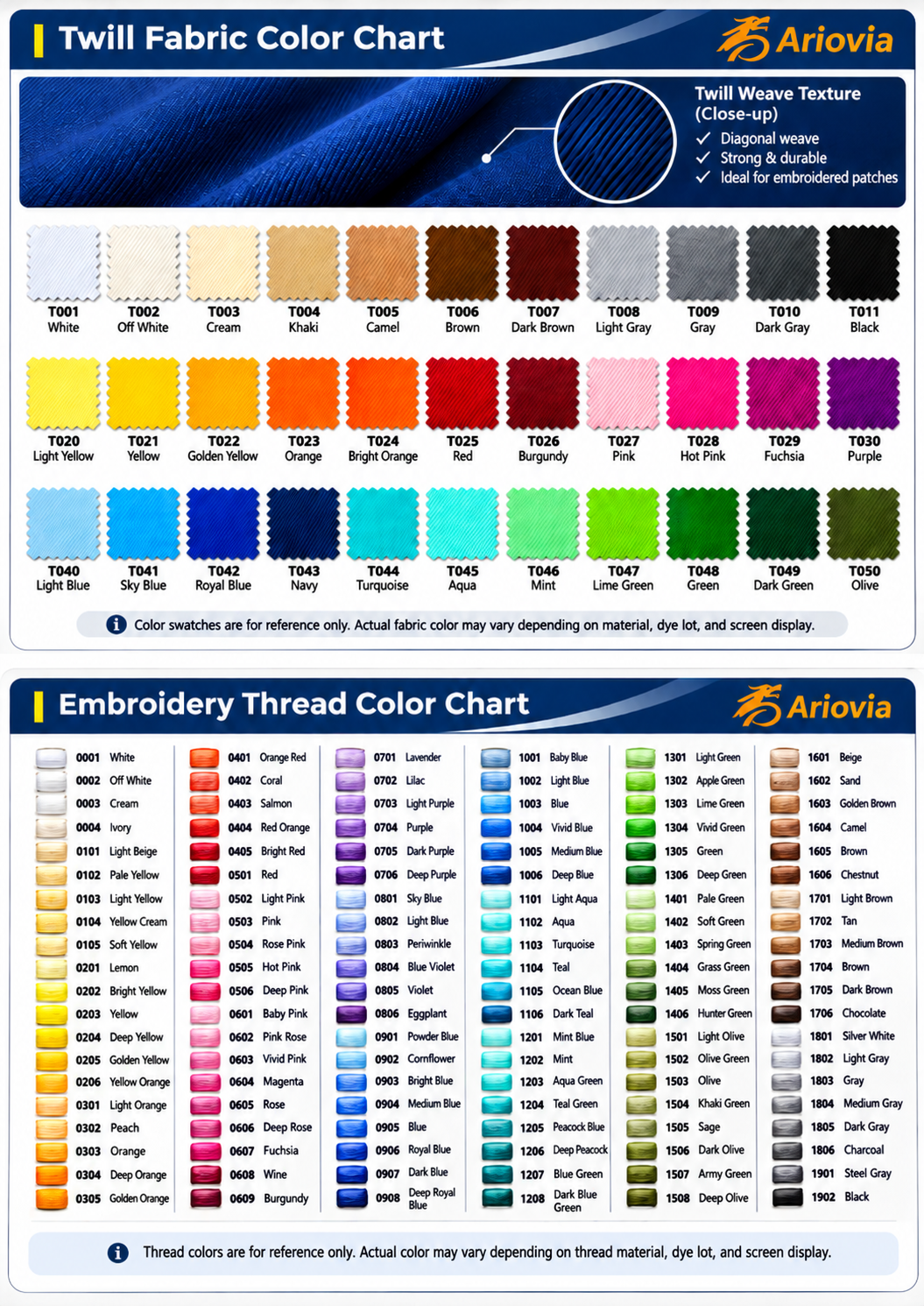
04 Download Color Charts & Design Example
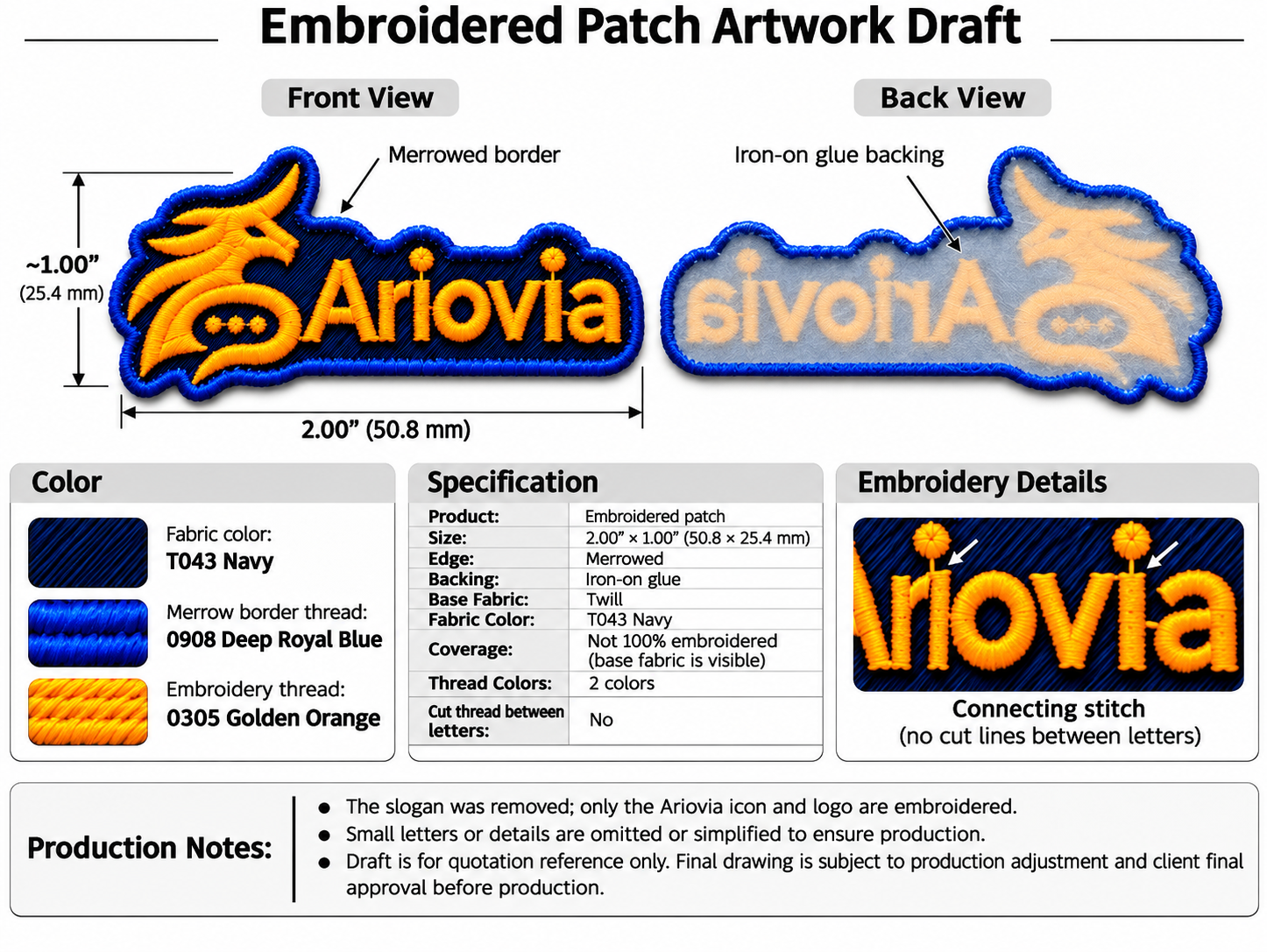
Embroidered Patch Artwork Draft
Download original PNGDownload the color charts and design example, then upload them to your preferred AI image generator along with your logo or reference images.
Color charts are for visual simulation only. Actual fabric and thread colors may differ.
05 Create Your Patch Design with AI
- Open your preferred AI tool and choose its image-generation feature.
- Paste the prompt from Step 03.
- Upload your logo or reference images.
- Upload the twill fabric and embroidery thread color charts from Step 04.
- Upload the embroidered patch design example, then ask AI to generate a design draft.
File formats, upload counts and usage limits vary by platform. Check the platform’s current rules.
06 Refine and Download Your AI Design
Use the AI conversation to adjust colors, text, borders, proportions, stitch texture, fabric and thread colors, and simplify intricate details. When satisfied, download the artwork from that AI platform.
Keep the approved logo meaning and proportions. Simplify tiny text and fine lines for embroidery, improve realistic stitch texture, and adjust only the colors or border I specify. Keep this a Design Draft for review, not final production artwork.07 Upload Your AI Design and Submit an RFQ
Your current specifications, quantity and design description will transfer. Nothing is submitted automatically. Reference images here do not transfer; upload your downloaded AI artwork on the RFQ page.
Start a New RFQ ↗The current RFQ is a local simulation. It does not deliver to sales or automatically generate a quotation.
08 Receive Your Quotation
We will review your design draft, product specifications, order quantity, and shipping destination to prepare a quotation.
The current RFQ is a local simulation. It does not deliver to sales or automatically generate a quotation.